HiringAssist
also tryHiringSimfor training

HiringAssist Wiki

Everything the interview assistant does: how it works, how it helps and how to turn it on.

Preparation

Ready in a minute

Paste the vacancy and the CV, the assistant does the rest.

What it does

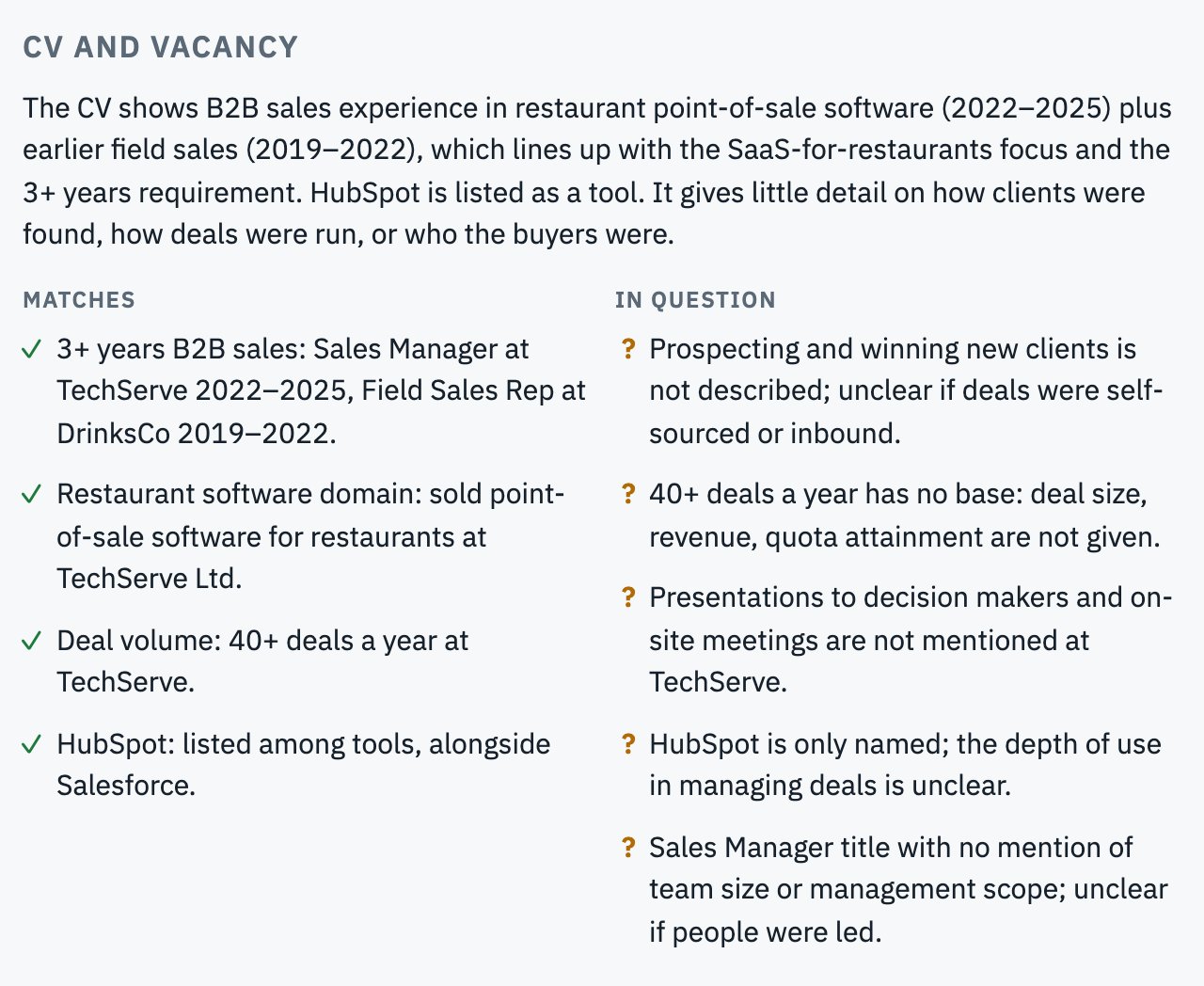
It compares the CV with the vacancy, shows what matches and where the risks are, suggests what to check in the interview, and names the interview after the candidate and the role.

How it helps

No need to study the CV before every call: what matters is already highlighted, and you go in with questions ready.

How to turn it on

  1. Press “New interview”.
  2. Pick a vacancy from the list or paste its text or link.
  3. Paste the candidate's CV as text or a link.
Ready in a minute

Interview plan

Conversation blocks in order, with questions tailored to this CV.

What it does

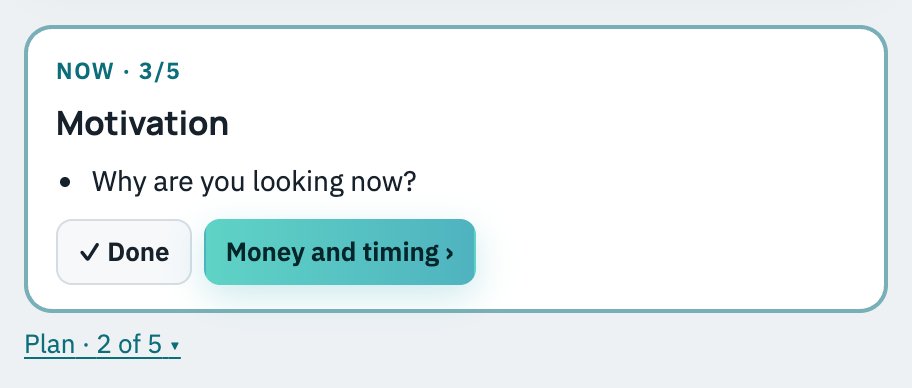
It builds a plan of blocks: introduction, experience, motivation, money and timing, the candidate's questions. Each block has two or three questions, open ones and follow-ups, one question at a time.

How it helps

The interview has a structure, nothing is forgotten, and during the call the assistant knows which block you're in and keeps its hints there.

How to turn it on

  1. The plan appears by itself once the vacancy and the CV are in.
  2. Move, rename, delete blocks and add your own questions.
Interview plan

The hiring manager's questions

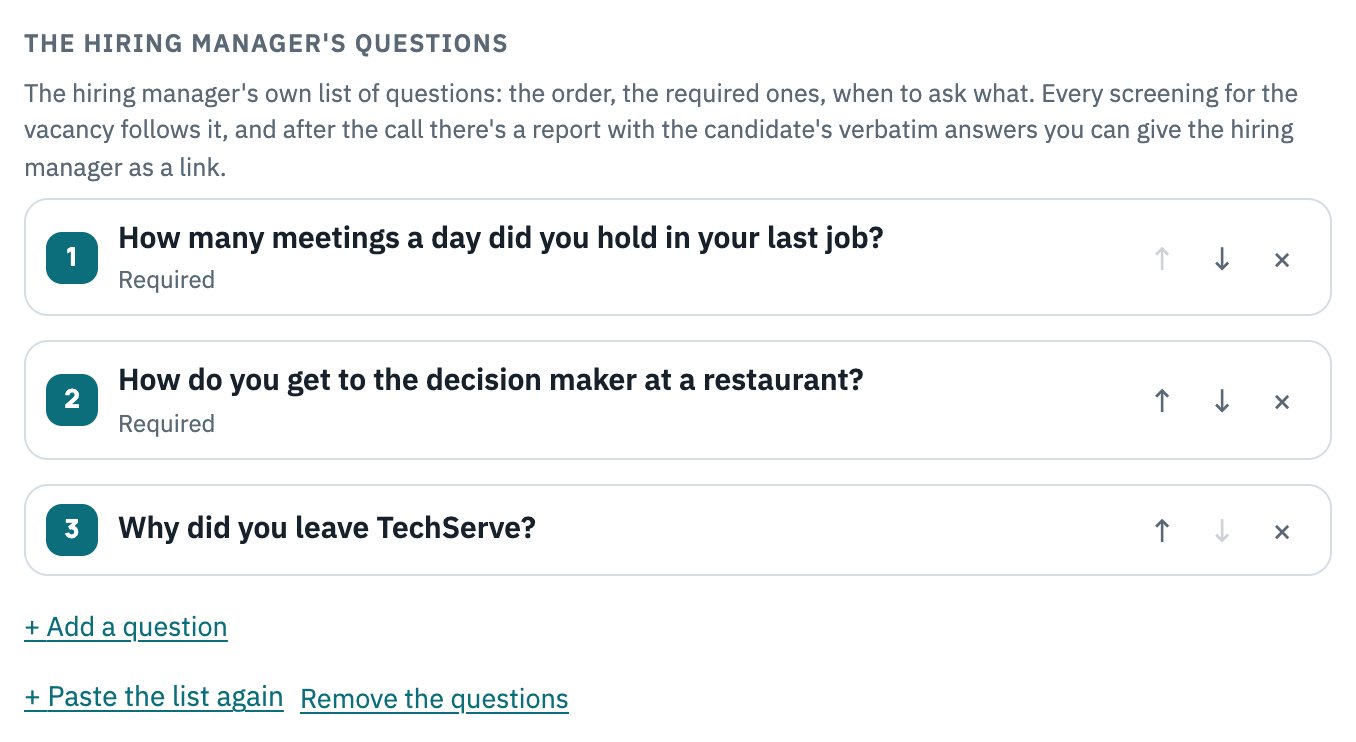
The manager's list becomes the plan of every screening for the vacancy.

What it does

Paste the manager's questions as they are: the assistant splits them into items without changing the wording. Mark the required ones and conditions like “ask if…”.

How it helps

The manager gets answers to exactly their questions, and the recruiter doesn't have to keep them in mind.

How to turn it on

  1. Open the vacancy and find “The hiring manager's questions”.
  2. Paste the list and press “Split”.
  3. Mark the required questions if needed.
The hiring manager's questions

During the call

Hints in the moment

Short hints a couple of seconds after the candidate answers.

What it does

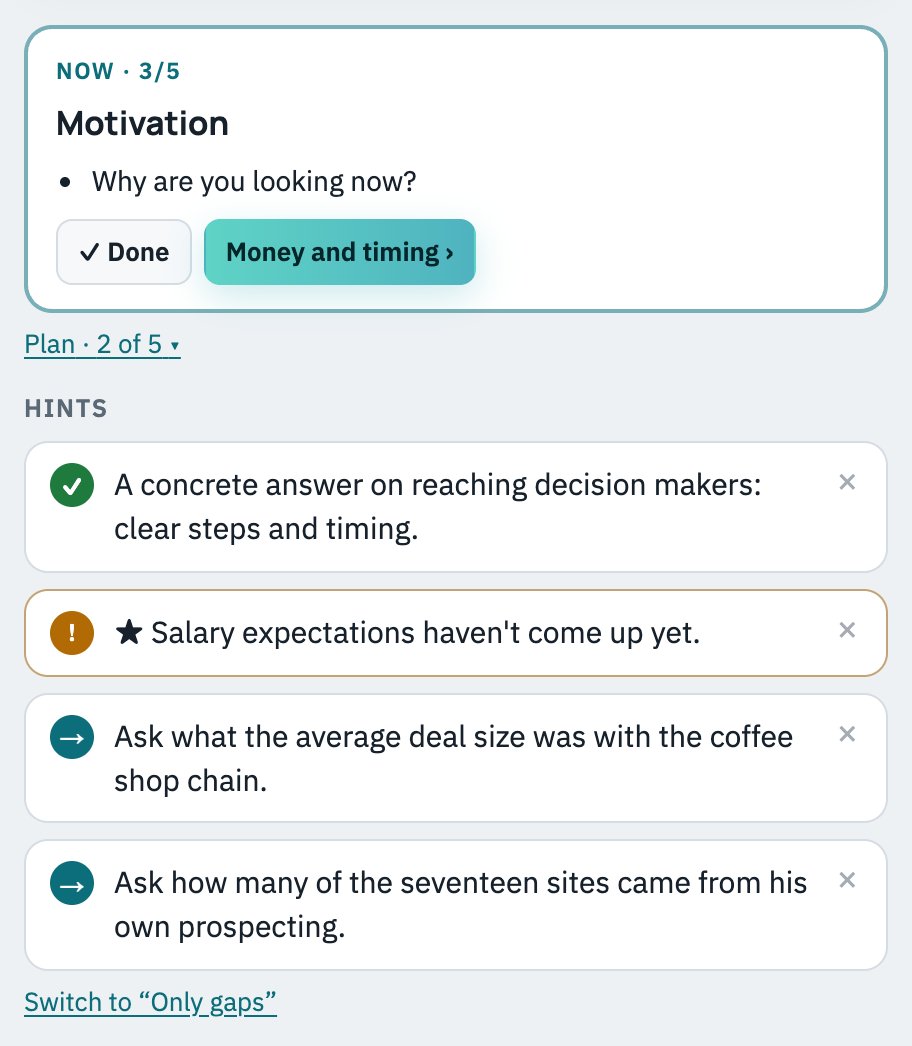
It notices what's worth a follow-up: a “we” with no personal role, a number with no base, a vague reason for leaving, something that contradicts the CV. It suggests the next question and reminds you of important checklist items.

How it helps

You don't miss the chances to dig deeper and learn more in the same time.

How to turn it on

  1. Connect the assistant to the call.
  2. Close a hint you don't need with its cross: the assistant won't come back to that topic.
Hints in the moment

A quiet mode for experienced interviewers

You lead the conversation, the assistant stays out of the way.

What it does

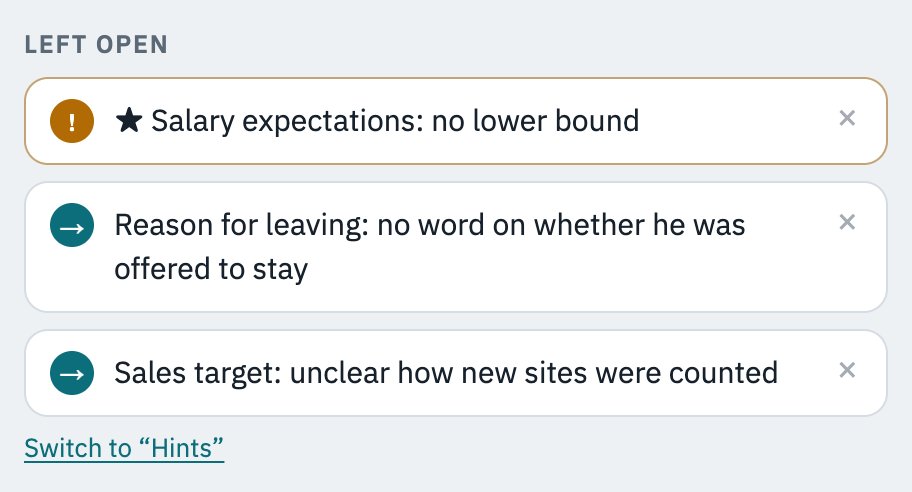
In the “Only gaps” mode the assistant suggests no questions or conclusions. It keeps the checklist and the plan and now and then marks topics the candidate left open: “Salary: no lower bound”.

How it helps

Nothing distracts you from the conversation, yet nothing important slips: you can return to an open topic before the call ends.

How to turn it on

  1. Pick the mode in “Settings → Assistant”, on a vacancy or when you prepare an interview.
  2. During the call, one button under the hints switches it.
A quiet mode for experienced interviewers

Tells several speakers apart

Tells not only the candidate from the interviewer, but also your colleagues on the call.

What it does

The extension sees who is speaking on Google Meet, Zoom and Microsoft Teams and signs the lines with the participants' names. With several people on the call, the panel asks once which one is the candidate.

How it helps

Hints and notes are built on the candidate's answers, not on the hiring manager's pitch about the company.

How to turn it on

  1. Connect through the Chrome extension: names come in by themselves.
  2. The assistant as a call participant also knows every participant's name.
Tells several speakers apart

Your notes during the call

Your own observations in one line.

What it does

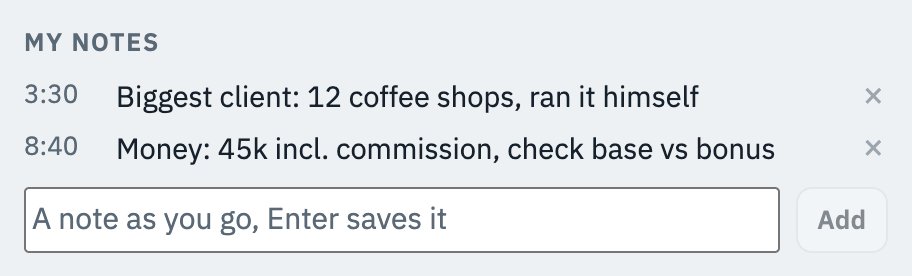
Type a line and press Enter: the note is saved with the minute of the call. The assistant never rewrites them.

How it helps

Your observations don't get lost: in the interview summary they come first, as you wrote them.

How to turn it on

  1. On the interview screen find “My notes”.
  2. Type a note and press Enter.
Your notes during the call

Connecting

Chrome extension

The assistant in a side panel next to the call.

What it does

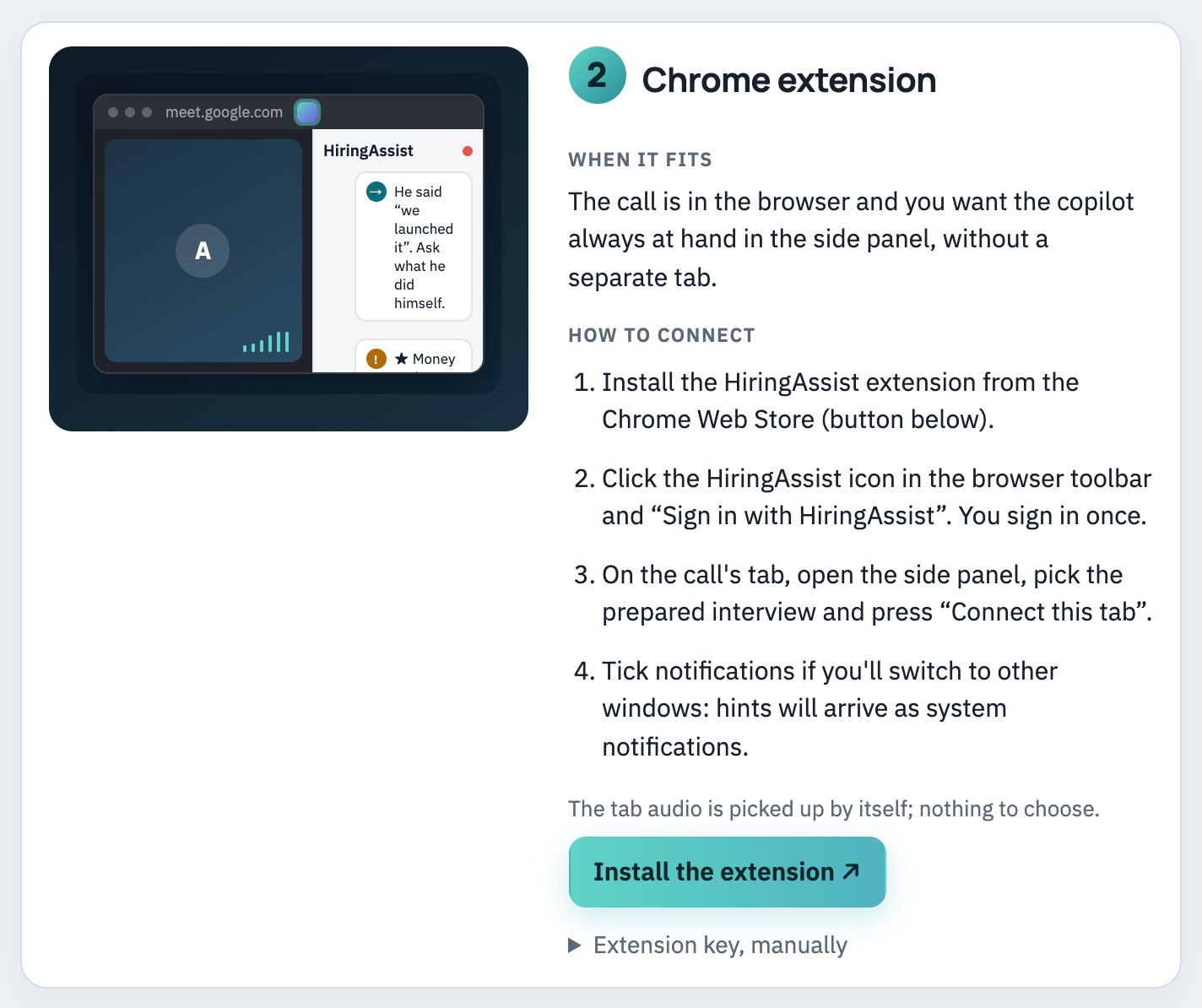
It listens to the call tab and your microphone, shows hints, the plan and the checklist in the browser's side panel, and sees who is speaking on six call services.

How it helps

Everything is at hand, nothing to switch between, and the assistant isn't visible in the call.

How to turn it on

  1. Install the extension from the Chrome Web Store.
  2. Open the call tab and click the HiringAssist icon.
  3. Pick the interview and press “Connect this tab”.
Chrome extension

Phone interviews

Hints and notes on an ordinary phone call.

What it does

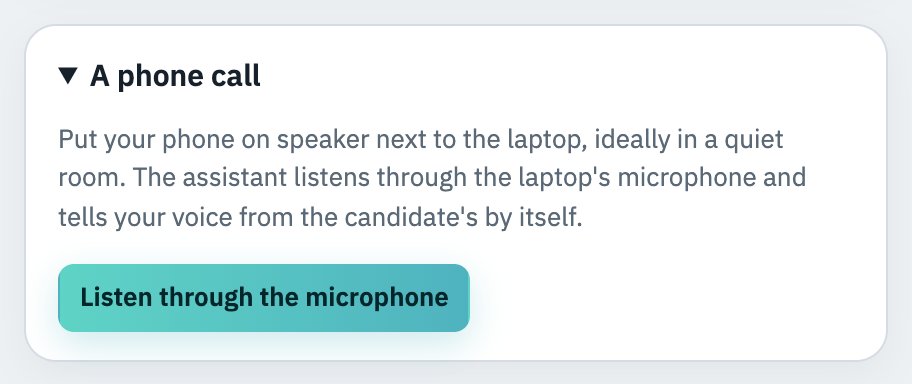
The assistant listens through the laptop's microphone, which hears both voices, and tells yours from the candidate's by itself.

How it helps

The same hints and interview summary, even when the call doesn't go through Zoom or Meet.

How to turn it on

  1. Put your phone on speaker next to the laptop.
  2. On the interview screen open “A phone call”.
  3. Press “Listen through the microphone”.
Phone interviews

The assistant as a call participant

For calls in the Zoom and Teams apps.

What it does

The assistant joins the call as the participant “HiringAssist notes” by the meeting link and hears every participant separately, by name.

How it helps

Works when the call runs in a desktop app rather than the browser.

How to turn it on

  1. On the interview screen open “Assistant as a call participant”.
  2. Paste the meeting link and press “Invite”.

HiringAssist in Claude and ChatGPT

Prepare interviews and get their results right in your AI assistant's chat.

What it does

Connect HiringAssist to Claude, ChatGPT or another assistant that supports MCP. From the chat you can see your vacancies, prepare an interview from a vacancy and a CV, get notes with the candidate's quotes, compare candidates on a vacancy and gather the facts for a message to a candidate. The interview itself, with hints, runs in HiringAssist.

How it helps

If you already work in Claude or ChatGPT, there's nothing to switch: preparation and results are where the rest of your work is.

How to turn it on

  1. In Claude: Customize → Connectors → Add custom connector. In ChatGPT: the apps section of the settings.
  2. Paste the address https://www.hiringassist.tech/api/mcp.
  3. Sign in to HiringAssist and click “Allow”. Details on the /mcp page.

After the call

A clear interview summary

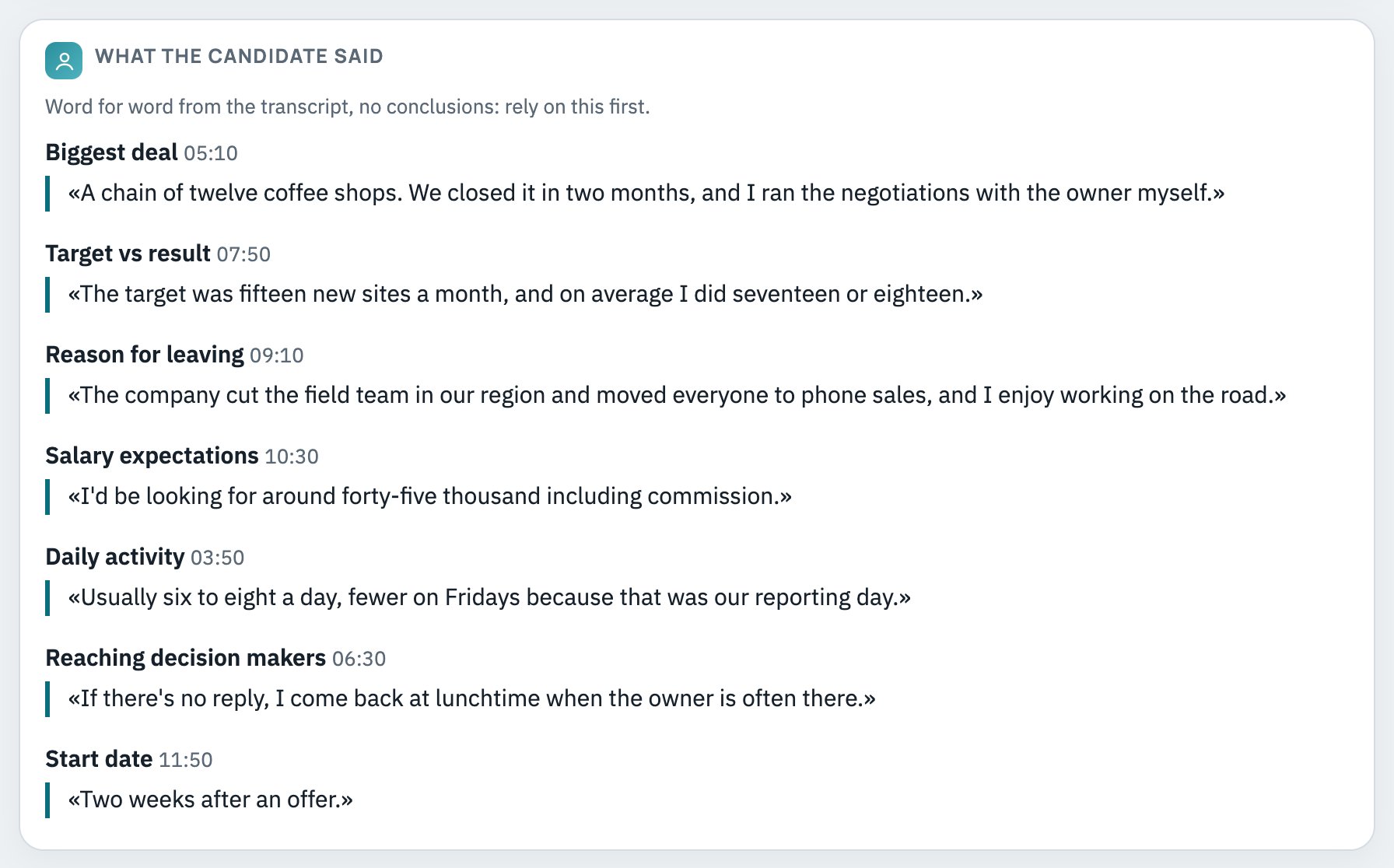
The candidate's words first, then conclusions.

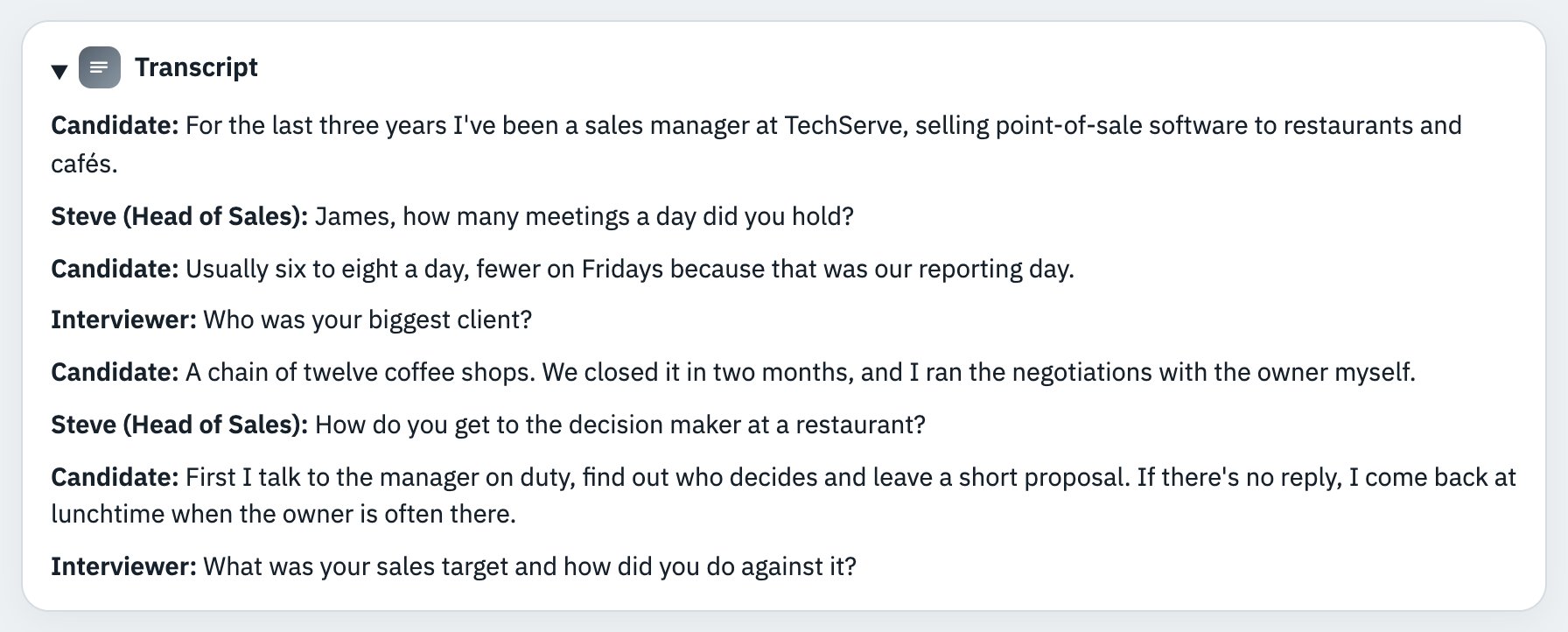
What it does

The summary starts with the candidate's key answers: word for word, with the minute of the call and the gist of the answer. Every quote is checked against the transcript. Below come the assistant's conclusions, marked as its interpretation: what was established, what is still unverified, questions for the next round, feedback on your technique.

How it helps

You see what each conclusion rests on, and feedback for the hiring manager takes less time.

How to turn it on

  1. Press “End” after the call: the summary is ready in half a minute.
A clear interview summary

ATS summary

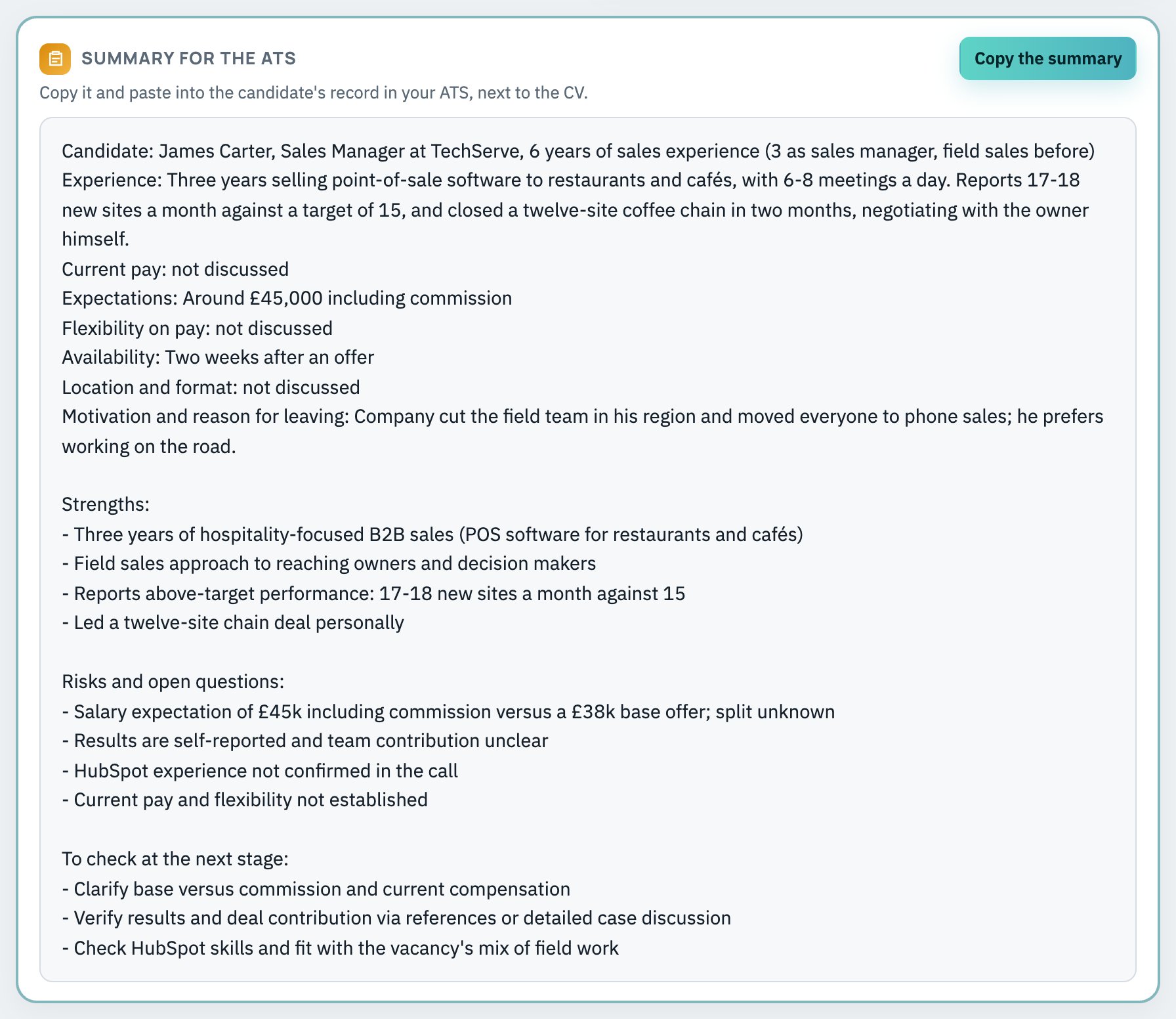
Ready text for the candidate's card in your ATS.

What it does

Experience, current pay and expectations, notice period, location, motivation, strengths, risks and what to check next. Anything that didn't come up is marked so.

How it helps

No filling in the candidate's card by hand: copy and paste.

How to turn it on

  1. After the call press “Copy summary”.
  2. Set your own fields in “Settings → Assistant → ATS summary → Your template”.
ATS summary

A report for the hiring manager

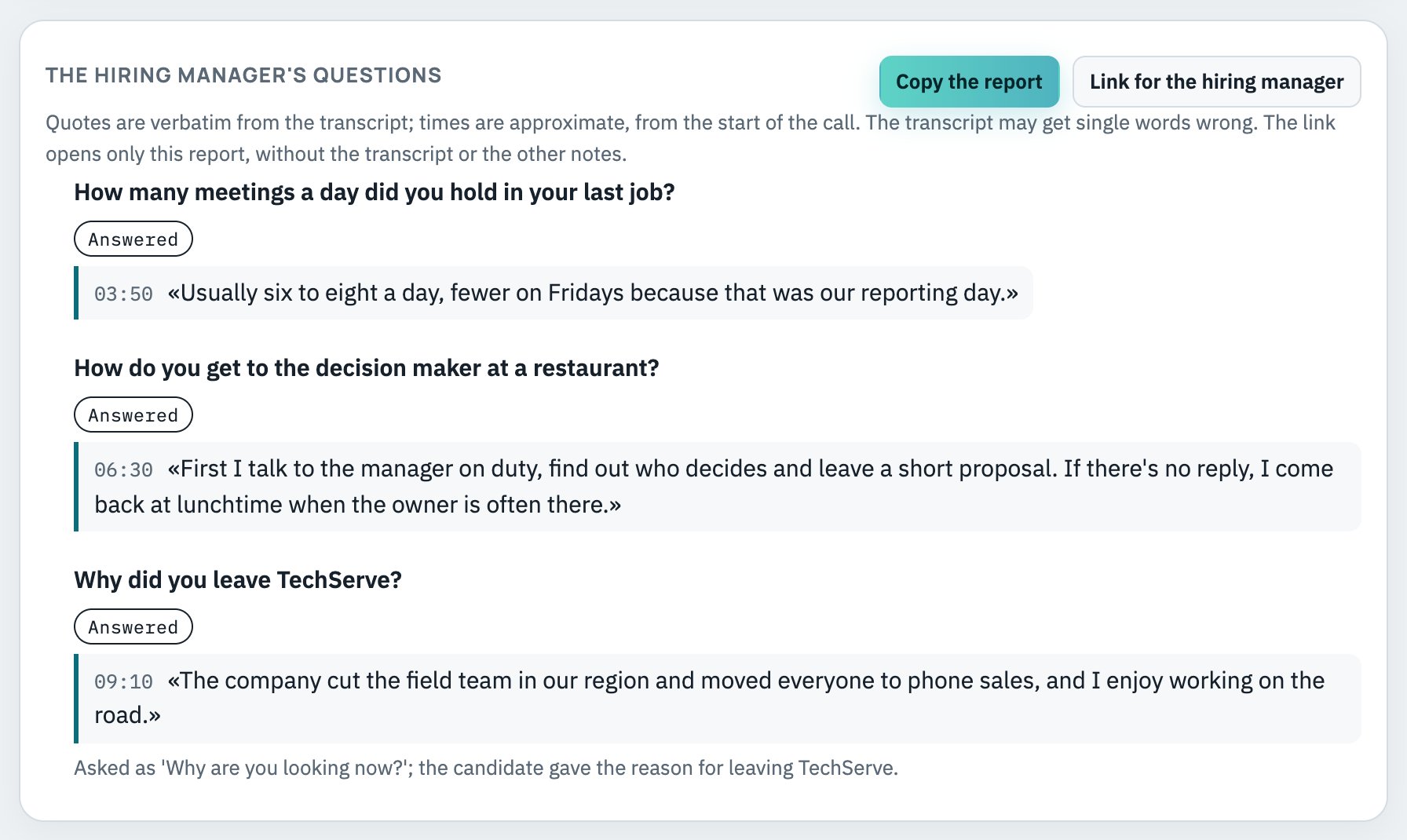
The manager's questions with verbatim answers, by link.

What it does

For each of the manager's questions: whether it was asked, the candidate's answer in their own words, and a mark if the candidate dodged it.

How it helps

The manager sees the answers without a retelling and decides faster whether to move the candidate on.

How to turn it on

  1. Add the manager's questions to the vacancy.
  2. After the call press “Share” in the report and send the link to the manager.
A report for the hiring manager

Call recording and an accurate transcript

The whole conversation, with a jump to any minute.

What it does

The assistant records the call and afterwards makes an accurate transcript with the voices told apart. Click a line and the recording jumps to that moment. The report is built from the accurate transcript.

How it helps

Listen again to a disputed answer, check a quote or show a fragment to a colleague.

How to turn it on

  1. Recording comes with Pro and Max, and as an option for Base.
  2. After the call the recording and the transcript appear in the interview summary.
  3. Recordings are kept 30 days on Pro and 90 on Max. With the “Recordings kept a year” option, recordings made in the months you paid for are kept a year, even if you turn the option off later.

For companies

Team

Recruiters and hiring managers in one company account.

What it does

The admin invites people by email and assigns them to vacancies. A recruiter sees their vacancies and runs interviews on them, a hiring manager reads the reports and writes their questions. The admin sees all the company's vacancies and interviews and the shared limit.

How it helps

All the hiring work in one place, and the same interview quality across all recruiters.

How to turn it on

  1. Request the Team plan.
  2. Invite colleagues on the “Team” tab.
HiringAssist Wiki